How to Fix Microphone Echo
If people hear themselves when they talk to you, the problem is on YOUR end. Here's how to stop the annoying feedback loop instantly.
Echo is the most annoying audio issue in video calls. It stops conversation in its tracks. But here's the uncomfortable truth: if your friends hear an echo of themselves, the problem is usually coming from YOUR computer.
It happens because your microphone is picking up the sound coming out of your speakers and playing it back to them. Here is how to fix it effectively.
Method 1: The Golden Rule (Use Headphones)
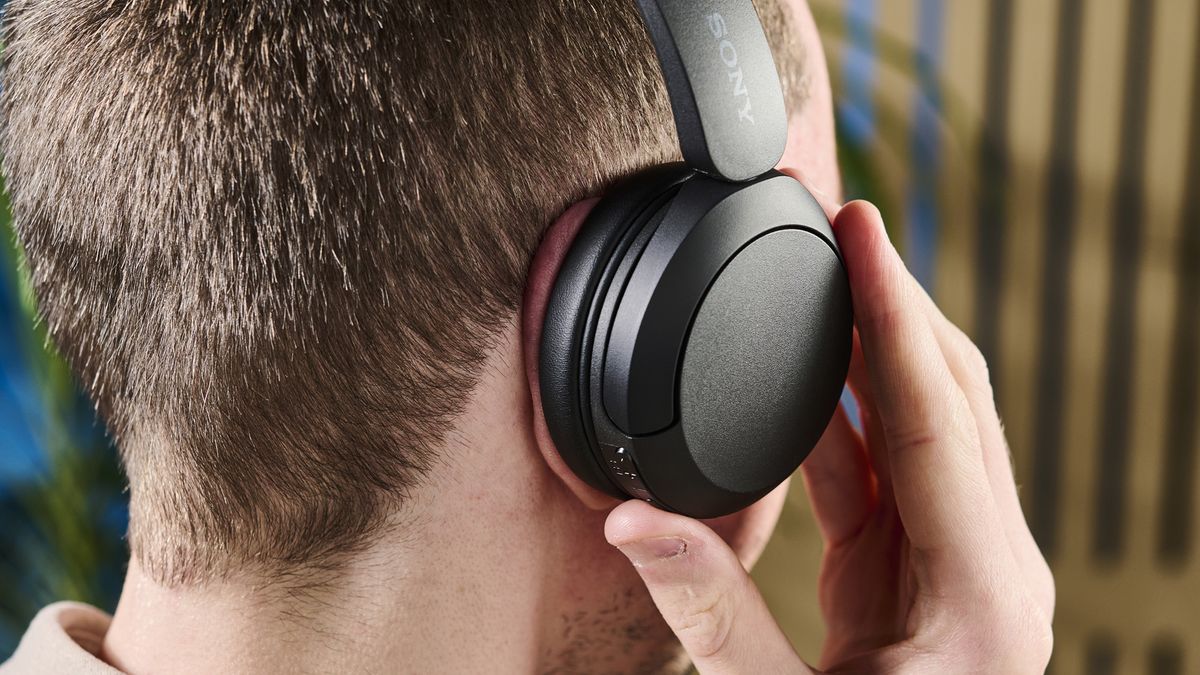
This fixes 99% of echo issues instantly. By wearing headphones, the sound from your friends' voices goes directly into your ears, not into the room where your mic can hear it.
Fix: Plug in any pair of headphones or earbuds. Even cheap ones will completely solve the feedback loop.
Method 2: Enable Echo Cancellation
If you absolutely must use speakers, you need to rely on software to filter out the echo.
Windows Settings
Content: Go to Sound Settings > Input > Device Properties. Look for "Enhancements" and check "Acoustic Echo Cancellation".
Zoom / Teams / Discord
Go to Audio Settings within the app. Ensure "Echo Cancellation" or "Noise Suppression" is set to Auto or High.
Method 3: Lower Your Speaker Volume
If your speakers are blasting sound, it naturally leaks into the microphone. Turining the volume down reduces the chance of this "bleed."
Method 4: Fix "Listen to this Device"
Sometimes, you might be hearing yourself locally (sidetone) or broadcasting it back.
- Open Control Panel > Sound.
- Go to the Recording tab.
- Right-click your mic and choose Properties.
- Go to the Listen tab.
- Uncheck "Listen to this device".
Still having issues?
Run a quick test to see if your mic is picking up background noise.
Test My Mic