Whether you're troubleshooting audio issues during a video call, setting up for a podcast recording, or optimizing your gaming setup, knowing exactly where your device's microphone is located can make all the difference. Many of us use our devices daily without ever thinking about the tiny microphones that capture our voice—until something goes wrong.
In this comprehensive guide, we'll show you exactly where to find the microphone on popular devices including iPhones, iPads, MacBooks, and various PC laptops. We'll also explain why this knowledge matters and how to test your microphone to ensure it's working properly.
Table of Contents
Why Knowing Your Microphone Location Matters
Understanding where your device's microphone is located isn't just trivia—it has practical implications:
- Better Audio Quality: When you know where your microphone is, you can position yourself optimally for clearer sound during recordings and calls. Speaking directly toward the microphone rather than away from it can dramatically improve audio clarity.
- Troubleshooting: If your microphone isn't working, the first step is often checking whether it's physically blocked by debris, a case, or your hand. Knowing the exact location helps you identify and fix these issues quickly.
- Accessory Compatibility: Understanding microphone placement helps you choose cases, stands, and other accessories that won't interfere with audio capture.
- Professional Results: For content creators, podcasters, and remote workers, microphone awareness is essential for producing professional-quality audio that keeps your audience engaged.
Where Is the Microphone on iPhone?
iPhones actually have multiple microphones strategically placed for different purposes. Here's where to find them:
- Primary Microphone (Bottom): Look at the bottom edge of your iPhone, next to the charging port. You'll see small holes—one of these is your primary microphone used for phone calls and most voice recordings.
- Front Microphone: Located in the small speaker grille at the top of your screen (in the notch on newer models, or the thin strip on older models). This microphone is primarily used during FaceTime calls and speakerphone mode.
- Rear Microphone: On the back of your iPhone near the camera lens, there's another microphone. This one captures audio when you're recording videos with the rear camera and helps with noise cancellation.
For iPhone 12 and newer models, you'll find the bottom microphone on the right side of the Lightning port, the front microphone in the earpiece/speaker area, and the rear microphone between the camera lenses and the flash.
Where Is the Microphone on iPad?
The microphone location on iPads varies slightly depending on the model:
- iPad Pro (2018 and newer): These models feature a sophisticated five-microphone array for studio-quality recording. You'll find microphones at the top center of the device (when held in portrait mode), with additional microphones positioned around the device for optimal sound capture from any angle.
- Standard iPad and iPad Air: Look for the microphone on the top edge of the device (when holding it in portrait orientation). It's usually a small pinhole located near the front-facing camera.
- iPad Mini: Similar to the standard iPad, the microphone is located on the top edge, typically centered or slightly offset toward the front camera.
Where Is the Microphone on MacBook Air & Pro?
MacBook Air
- 2018-Present: Modern MacBook Air models feature a three-microphone array located beneath the keyboard, specifically under the speaker grilles on either side. These are not visible holes but are integrated beneath the metal grille work near the hinge.
- 2010-2017: Older models typically have dual microphones located on the left side of the laptop, near the headphone jack (look for small pinhole openings).
MacBook Pro
- 2018-Present: Like the Air, recent Pros feature a studio-quality three-microphone array positioned beneath the keyboard speaker grilles.
- 2016 and Earlier: Older models typically feature the microphone on the left side of the device, near the headphone jack and charging port.
PC Laptops: HP, Dell, and Acer
HP Spectre X360
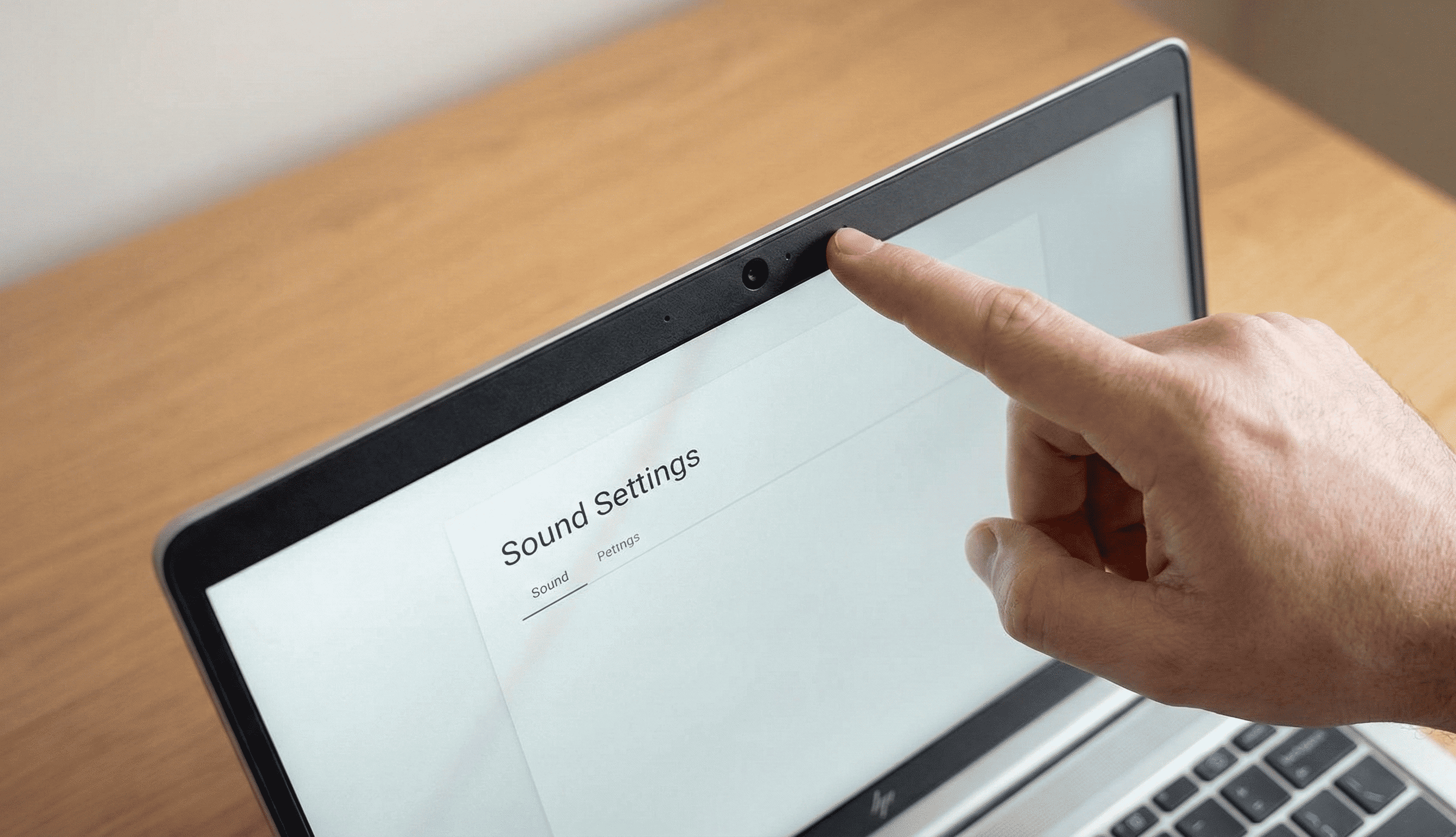
Most HP Spectre X360 models feature dual microphones located above the keyboard, typically positioned near the top edge. On many models, you'll find them on either side of the webcam in the top bezel.
Dell Chromebooks
Most Dell Chromebooks place the microphone above the screen, integrated into the bezel near the webcam. Look for a small pinhole opening next to the camera lens.
Acer Chromebooks
Acer typically positions dual microphones in the top bezel on either side of the webcam, especially in their Spin and clamshell series, to enable better noise cancellation.
Testing Your Microphone: Why and How
Once you've located your device's microphone, it's important to verify it's working correctly.
Using MicrophoneChecker.com
- Navigate to MicrophoneChecker.com in your web browser.
- Allow the website to access your microphone when prompted.
- Speak into your device and watch for the visual indicator.
- The tool will display audio levels and let you listen to a playback.
Ready to test?
Use our free tool to ensure your microphone is positioned correctly and sounding great.
Test My Mic NowTips for Optimal Performance
- Keep it clean: Gently clean microphone openings with a soft, dry brush.
- Remove obstructions: Check cases and stickers.
- Minimize noise: Position yourself in a quiet environment.