Microphone Tips: How to Improve Sound Quality and Reduce Noise
Published on February 6, 2026
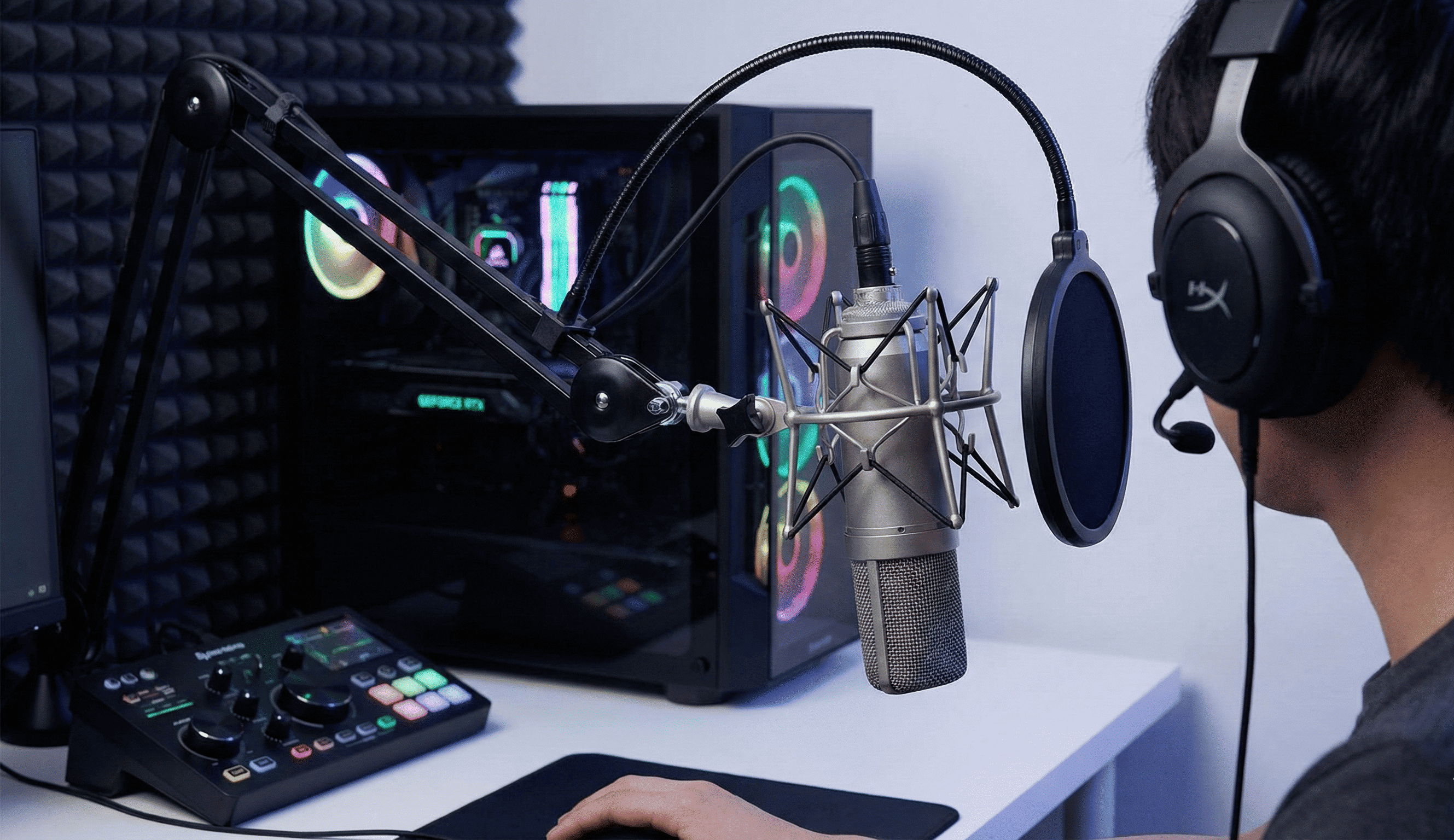
Clear, professional-sounding audio can make the difference between a successful podcast, an engaging video call, or a frustrating communication experience. Whether you're using a built-in laptop microphone, a smartphone, or a dedicated USB microphone, there are numerous ways to dramatically improve your sound quality and eliminate unwanted background noise.
In this comprehensive guide, we'll explore both hardware and software solutions to help you achieve crystal-clear audio. From simple positioning tricks to advanced noise suppression techniques, you'll discover actionable steps to transform your microphone performance.
Table of Contents
Understanding the Basics: Why Your Microphone Sounds Bad
Before diving into solutions, it's helpful to understand common audio problems. Poor microphone quality typically stems from several issues: low input volume making your voice sound distant or quiet, background noise from fans, traffic, or other environmental sounds, distortion from speaking too close or too loudly, and muffled audio caused by obstructions or dirty microphone openings.
The good news is that each of these problems has practical solutions that don't require expensive equipment upgrades.
How to Make Microphone Louder: Boosting Your Audio
If people constantly ask you to speak up during calls or your recordings sound too quiet, increasing your microphone volume is the first step. Here's how to make your microphone louder on different devices.
Windows PC Microphone Volume
Adjusting microphone volume in Windows is straightforward. Right-click the speaker icon in your taskbar and select "Sound settings" or "Sounds." Navigate to the Input section and select your microphone from the dropdown menu. Click "Device properties" to access volume controls. Use the volume slider to increase your microphone level typically, setting it between 80-100% provides good results without distortion.
For even more control, click "Additional device properties" and go to the "Levels" tab. Here you'll find both the microphone volume slider and the microphone boost option. The boost feature can add an additional 10-30 dB of gain, though be cautious as excessive boost can introduce noise.
Mac Microphone Volume
On macOS, open System Preferences (or System Settings on newer versions) and click "Sound." Select the "Input" tab and choose your microphone from the list of devices. Adjust the "Input volume" slider to increase your microphone level. Speak at your normal volume and watch the input level meter aim for the meter to reach about two-thirds to three-quarters of the way when speaking normally.
If your microphone still sounds too quiet after maxing out the input volume, you may need to use third-party software or adjust application-specific settings.
iPhone Microphone Volume
While iPhones don't have a system-wide microphone volume control, you can optimize microphone performance. Ensure nothing is blocking the microphone openings, remove your phone case temporarily to test if it's interfering with sound capture, and check app-specific settings as some apps like Voice Memos allow you to adjust recording levels.
For video calls, speaking directly toward the bottom microphone (near the charging port) provides the strongest signal. If you're using headphones with a built-in microphone, the iPhone will automatically switch to that input source, which often provides better volume and clarity.
Understanding Microphone Gain: The Key to Professional Sound
Microphone gain is one of the most important concepts for achieving quality audio. Gain controls how much your microphone amplifies the sound it captures before sending it to your computer or recording device.
What Is Microphone Gain?
Think of gain as the sensitivity setting for your microphone. Higher gain means the microphone is more sensitive and will pick up quieter sounds, while lower gain requires you to speak louder to achieve the same recording level. Finding the right gain balance is crucial because too little gain makes your voice sound weak and distant, while too much gain introduces background noise, hiss, and potential distortion.
Adjusting Microphone Gain on Different Platforms
- Windows Gain Settings: Access the microphone boost feature mentioned earlier by going to Sound settings, selecting your microphone, clicking "Additional device properties," and navigating to the "Levels" tab. The microphone boost dropdown typically offers options like +10 dB, +20 dB, or +30 dB. Start with +10 dB and increase only if needed, as higher boost levels amplify background noise along with your voice.
- Mac Gain Adjustments: macOS doesn't offer a built-in "gain" or "boost" feature in system settings. The input volume slider essentially functions as gain control. For more precise gain control on Mac, consider using audio software like QuickTime Player (which has recording level controls), GarageBand (which offers comprehensive gain adjustments), or third-party apps like Audio Hijack.
- USB Microphone Gain: Many USB microphones feature a physical gain knob or dial on the microphone itself. This hardware gain control is preferable to software boost because it amplifies the signal before digitization, resulting in cleaner audio. Start with the gain knob at the 12 o'clock position and adjust while speaking at your normal volume aim for your loudest speaking moments to peak around -6 to -12 dB without hitting 0 dB (which causes distortion).
Finding Your Optimal Gain Level
Here's a practical method for setting gain correctly. Open your recording or communication software and locate the audio level meter. Start speaking at your typical volume while monitoring the meter. Adjust gain so that your normal speaking voice causes the meter to show levels around -12 to -18 dB, with louder moments reaching up to -6 dB but never consistently hitting 0 dB (the red zone). This approach provides clear, strong audio with headroom to prevent distortion during emphatic moments.
How to Reduce Mic Background Noise: Software Solutions
Background noise is one of the most common complaints about microphone audio. Fortunately, modern software offers powerful tools to minimize unwanted sounds.
Windows Noise Suppression
Windows 10 and 11 include built-in noise suppression features. Navigate to Sound settings and select your microphone. Click "Device properties" and look for options like "Noise suppression" or "Audio enhancements." Enable these features to automatically reduce background noise.
For communication apps, many platforms offer their own noise reduction:
- Microsoft Teams: Go to Settings, select "Devices," and enable "Noise suppression." You can choose between Auto, Low, High, or Off settings.
- Zoom: Access Settings, click "Audio," and enable "Suppress background noise." Zoom offers levels from Low to High, with Auto being the recommended setting for most situations.
- Discord: Navigate to User Settings, select "Voice & Video," and enable "Noise Suppression." Discord's Krisp-powered noise suppression is remarkably effective at eliminating keyboard typing, fan noise, and other ambient sounds.
Mac Noise Reduction
macOS includes a "Use ambient noise reduction" option for built-in microphones. Access this by opening System Preferences, clicking "Sound," selecting the "Input" tab, and checking the "Use ambient noise reduction" box. This feature uses the multiple microphones in MacBooks to cancel out background noise.
For more aggressive noise reduction on Mac, consider professional audio applications like Logic Pro X (which includes sophisticated noise gates and noise reduction plugins), Adobe Audition (featuring industry-leading noise reduction algorithms), or iZotope RX (the gold standard for audio cleanup and restoration).
Third-Party Noise Suppression Tools
Several dedicated applications provide superior noise reduction across all platforms:
- Krisp: This AI-powered noise cancellation app works with any communication platform by creating a virtual microphone that filters out background noise. It's available for both Windows and Mac and offers a free tier with limited minutes.
- NVIDIA RTX Voice / Broadcast: If you have an NVIDIA RTX graphics card, this free software provides exceptional AI-powered noise removal that can eliminate even extreme background sounds like lawnmowers and barking dogs.
- SoliCall Pro: This professional noise reduction software removes background noise, acoustic echo, and reverberation in real-time, making it ideal for home office environments.
Hardware Solutions for Better Microphone Quality
While software improvements are valuable, hardware solutions often provide the most dramatic audio quality enhancements.
Microphone Positioning: The Most Important Factor
Proper microphone positioning might be the single most impactful improvement you can make. Follow these positioning guidelines for optimal results:
- Distance: Position the microphone 6-12 inches from your mouth. Too close causes distortion and plosives (harsh "p" and "b" sounds), while too far makes your voice sound distant and weak.
- Angle: Point the microphone toward your mouth, but slightly off-axis (about 15-30 degrees to the side) to reduce plosives and harsh sibilance.
- Height: Position the microphone at mouth level, not above or below, for the most natural sound capture.
- Environment: Place the microphone away from noise sources like computer fans, air conditioning vents, windows facing busy streets, and refrigerators or other appliances.
Pop Filters: Eliminating Plosives
Pop filters are mesh or foam screens placed between your mouth and the microphone to diffuse air bursts from plosive sounds. These inexpensive accessories (typically $10-30) prevent the harsh "pop" sounds when pronouncing P, B, and T consonants.
There are two main types of pop filters. Fabric mesh filters offer professional-grade plosive reduction and are nearly transparent to audio frequencies, making them ideal for recording. Foam windscreens provide basic protection and are commonly used for podcasting and live situations, though they can slightly muffle high frequencies.
Installation is simple: mount the pop filter on a flexible arm attached to your microphone stand and position it 2-3 inches in front of the microphone capsule.
Shock Mounts and Boom Arms
Mechanical vibrations from typing, desk movements, and footsteps can travel through your microphone stand and create low-frequency rumble in your audio. Shock mounts suspend your microphone using elastic bands, isolating it from these vibrations.
Boom arms provide positioning flexibility and keep the microphone off your desk entirely, further reducing vibration transmission. A quality boom arm and shock mount combination (available for $30-100) represents an excellent investment for anyone serious about audio quality.
Acoustic Treatment: Controlling Your Environment
Your recording environment dramatically affects sound quality. Hard surfaces like walls, desks, and windows reflect sound waves, creating echo and reverb that make your audio sound hollow or "roomy."
Simple acoustic improvements include adding soft furnishings like curtains, rugs, area carpets, upholstered furniture, and bookshelves filled with books (which diffuse sound). For dedicated recording spaces, consider acoustic foam panels on walls behind and beside the microphone, bass traps in room corners to control low-frequency buildup, and portable acoustic shields that create a controlled environment around your microphone.
How to Clean iPhone Microphone: Maintenance for Better Sound
Physical obstructions are a common cause of muffled or quiet microphone performance, especially on devices we carry in pockets and bags. Regular cleaning can restore your microphone to optimal performance.
Safe Cleaning Methods for iPhone Microphones
iPhones have multiple microphone openings that can accumulate lint, dust, and debris. Here's how to safely clean them:
What You'll Need: A soft-bristled brush (like a clean toothbrush), compressed air (optional), a wooden or plastic toothpick (never metal), good lighting, and a microfiber cloth.
Cleaning Steps: First, power off your iPhone to prevent any accidental damage. Visually inspect all microphone openings using good lighting you'll find them at the bottom near the charging port, at the top in the earpiece, and on the back near the camera. Gently brush across the microphone openings with a soft-bristled brush using light strokes. If you have compressed air, hold the can upright and use very short bursts from at least 6 inches away (never use prolonged air blasts, which can damage internal components).
For stubborn debris, carefully use a wooden or plastic toothpick to loosen buildup, being extremely gentle to avoid pushing debris further in or damaging the mesh. Never insert metal objects, use sharp tools, spray liquids into the openings, or use excessive force.
Cleaning Other Device Microphones
- MacBook Microphones: Since MacBook microphones are beneath the speaker grilles, cleaning requires a gentle approach. Use compressed air in short bursts along the speaker grilles and wipe the area with a slightly damp microfiber cloth (barely damp, not wet). Never remove the speaker grilles unless you're comfortable with hardware disassembly.
- USB Microphones: For external microphones, remove any foam windscreen or pop filter and clean these accessories separately with mild soap and water, allowing them to dry completely. Use a soft brush to remove dust from the microphone mesh and wipe the body with a dry or slightly damp microfiber cloth. For metal mesh screens, compressed air effectively removes accumulated dust.
- Laptop Microphones: Most laptop microphones are located near the webcam in the top bezel. Gently clean this area with compressed air and a soft brush, avoiding any moisture near the openings.
Advanced Settings and Techniques
For those seeking even better audio quality, these advanced techniques provide professional-level results.
Using Noise Gates
A noise gate is a processing tool that mutes your microphone when you're not speaking, eliminating background noise between words and sentences. Most communication apps and recording software offer noise gate settings:
How to Set a Noise Gate: Find the noise gate or voice activation threshold in your software settings. Adjust the threshold so the microphone only activates when you speak set it too high and it will cut off the beginning of words, too low and it won't effectively silence background noise. Test by speaking normally and watching for the gate to open, then observe if background noise disappears when you stop speaking.
Recommended Applications: OBS Studio (free streaming and recording software with excellent noise gate functionality), Discord (built-in gate with adjustable sensitivity), and most digital audio workstations like Audacity, GarageBand, and Adobe Audition.
Equalization (EQ) for Voice Enhancement
EQ allows you to boost or reduce specific frequency ranges to make your voice sound clearer and more professional. For typical voice enhancement, try these EQ adjustments:
Apply a high-pass filter at 80-100 Hz to remove low-frequency rumble that adds no value to voice but contributes noise. Reduce frequencies around 200-300 Hz if your voice sounds muddy or boomy. Boost slightly around 3-5 kHz to add presence and clarity, making your voice cut through more clearly. Reduce around 6-8 kHz if you have harsh sibilance (excessive "s" and "sh" sounds).
Most audio software includes EQ tools, and many communication apps now offer basic voice enhancement presets.
Compression for Consistent Levels
Audio compression reduces the dynamic range of your voice, making quiet parts louder and preventing loud parts from distorting. This creates more consistent, professional-sounding audio. Many broadcasting apps and audio software include compression presets designed for voice start with these before diving into manual compression settings.
Software-Specific Settings
Different platforms have unique audio settings worth exploring for optimal performance.
- Optimizing Zoom Audio: In Zoom settings under "Audio," enable "Automatically adjust microphone volume" for hands-free level management. Select "Suppress background noise" and set it to High for noisy environments. Enable "Echo cancellation" to prevent feedback loops. For music or high-fidelity audio, enable "Original sound" which bypasses Zoom's audio processing (find this in the meeting toolbar once enabled in settings).
- Enhancing Discord Voice Quality: Discord offers impressive audio customization. Navigate to User Settings, select "Voice & Video," and enable "Noise Suppression" using Krisp technology. Adjust "Input Sensitivity" by toggling off automatic sensitivity and setting the threshold manually so the indicator activates when you speak but not during silence. Enable "Echo Cancellation" to prevent your speakers from feeding back into your microphone. For highest quality, enable "Advanced Voice Activity" for more reliable voice detection.
- Windows Communication Apps: For Microsoft Teams and similar Windows applications, access Windows' Sound settings and enable "Communications" adjustments. This Windows feature automatically reduces the volume of other sounds when it detects communication activity, ensuring your microphone and the person you're speaking with remain clearly audible even when other applications are running.
Creating Your Ideal Audio Setup: A Step-by-Step Checklist
Ready to transform your microphone quality? Follow this systematic approach:
- Physical Setup: Clean your microphone openings, position the microphone 6-12 inches from your mouth at mouth level, install a pop filter if using an external microphone, and use a shock mount and boom arm to isolate from vibrations.
- Environment: Record in a room with soft furnishings and minimal hard surfaces, close windows and doors to reduce external noise, turn off fans, air conditioning, or other noise sources during recording, and consider portable acoustic treatment for dedicated recording spaces.
- Software Configuration: Set microphone volume to 80-100% in system settings, adjust gain so speaking peaks around -12 dB, enable built-in noise suppression in your operating system, configure application-specific noise reduction, and implement a noise gate if needed.
- Advanced Optimization: Apply gentle EQ to enhance voice clarity, use compression for consistent levels, test and refine settings based on actual use, and regularly clean and maintain your equipment.
Test Your Improvements
After implementing these changes, test your microphone to verify improvements. Use online tools like MicrophoneChecker.com to visually confirm your levels and test for background noise.
Test My Mic NowConclusion
Improving your microphone sound quality doesn't require expensive equipment upgrades. By combining proper positioning, regular cleaning, optimized software settings, and simple acoustic treatments, you can achieve dramatically better audio that sounds clear, professional, and free from distracting background noise.
Whether you're making your microphone louder through proper gain settings, reducing mic background noise with software tools, understanding how microphone gain affects your sound, or learning how to clean your iPhone microphone, each small improvement compounds to create professional-quality audio.
Start with the basics positioning and cleaning then progressively implement software solutions and acoustic treatments based on your specific needs. Test each change to hear the difference, and don't be afraid to experiment with settings to find what works best for your voice and environment.
With these techniques in your toolkit, you'll never have to hear "Can you repeat that?" or "Your audio is breaking up" again. Clear communication starts with clear audio, and now you have everything you need to achieve it.